Tap Dance
Tap Dance allows you to configure different actions depending on how a button is used. For example, the same button could be configured to active a macro when the button is tapped or activate something else when the button is held.
1. Configuring Tap Dance
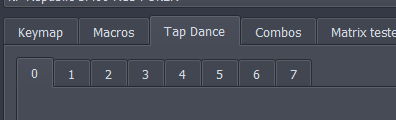
Click the Tap Dances tab at the top and one of the available numbers below it. By default, the number of configurable Tap Dance entries is calculated from the EEPROM size on your keyboard’s microcontroller. This limit can be adjusted at compile time (not the GUI) when building firmware.
Each tap dance can be configured to do different actions based on how the button is pressed. In the case below, when the button is “Tapped”(On tap), the Left GUI is pressed but when the button is held(On hold), the button activates layer 1. The other two options (On double tap) and (On tap + hold) can also be configured.
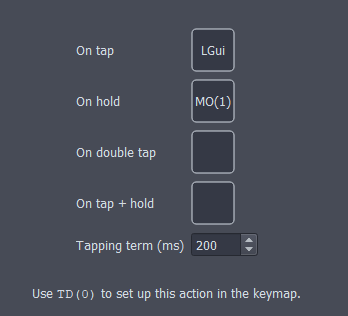
The tapping term represents the timing on how the firmware distinguishes between the actions. If a button is held for longer than the tapping term it’s considered a hold. If a button is held for shorter than the tapping term it’s considered a tap.
When you are satisfied with the configuration of all tap dance configurations, click save to save all changes. If you want to revert to what is already on the device, click revert
2. Using a Tap Dance
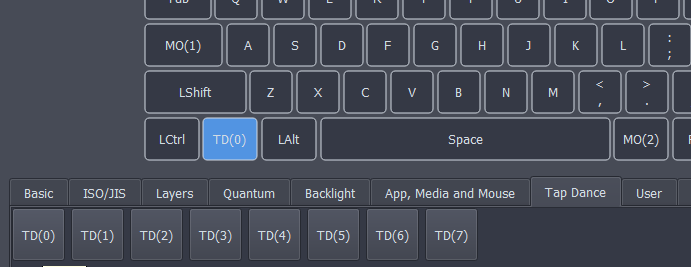
After the tap dance has been configured and saved, it can be used. Just click on a key you would like to use for a tap dance in the top palette then select your tap dance in the bottom palette. (under the Tap Dance tab)
More info
Tap Dance is a QMK feature and more detailed information can be found with the official QMK documentation.